

Supported platforms
Cashfree supports integration with the following analytics platforms:- Google Analytics 4 (GA4)
- Meta Pixel
- Mixpanel
- Google Ads (via GA4 linking)
- Meta Ads (via Meta Pixel linking)
If your analytics provider is not listed, contact Cashfree support.
Configure external analytics
To configure external analytics integration, follow these steps:- Log in to the Merchant Dashboard using your credentials.
- In the Payment Gateway section, select Access.
- In the left navigation pane, select Developers > Checkout Analytics.
- Under the Actions column, select the Edit icon.
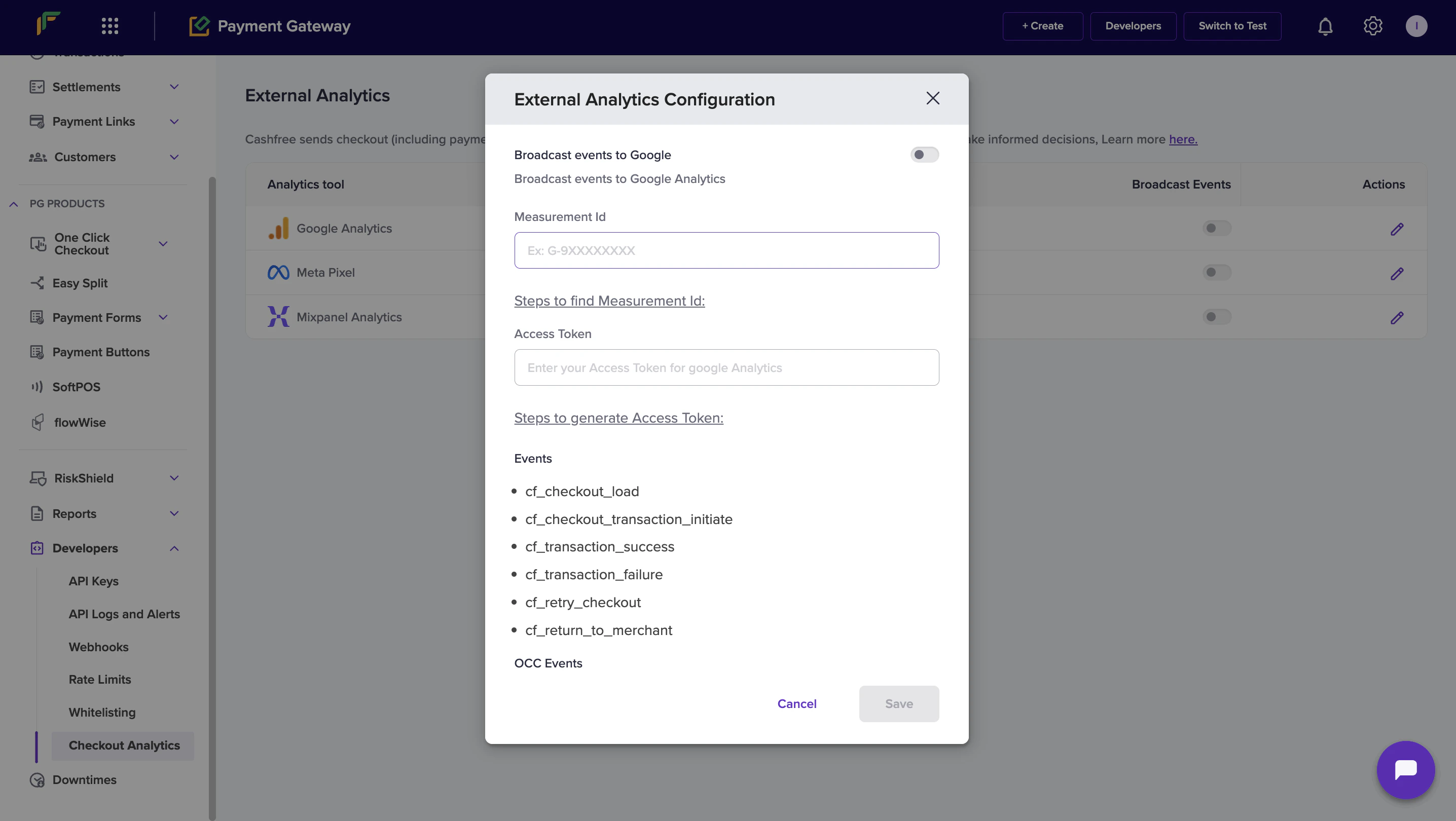
- In the External Analytics Configuration modal, configure the integration as described in the setup sections below.
- Select Save to apply your changes.
Event categories
Events are organised into different categories based on where they are triggered and what they track. You can track customer interactions in your integration by using the following event categories:- Checkout
- One Click Checkout (OCC)
Checkout events
Use these events to track customer interactions in the standard checkout flow, including checkout pages, payment links, and payment forms.Client-side Checkout events
Client-side events are triggered in the browser or app when customers interact with the checkout interface.| Event name | Description |
|---|---|
cf_checkout_load | Checkout loaded successfully. |
cf_checkout_transaction_initiate | Customer initiated a transaction. |
cf_transaction_success | Transaction completed successfully. |
cf_transaction_failure | Transaction failed. |
cf_retry_checkout | Redirected to checkout after failure. |
cf_return_to_merchant | Customer redirected back to merchant page. |
Client-side Payment Link and Payment Form events
| Event name | Description |
|---|---|
cf_pl_load | Payment link loaded successfully. |
cf_pf_load | Payment form loaded successfully. |
cf_checkout_initiated | Checkout initiated from a payment link or form. |
cf_purchase_completed | Payment completed successfully. |
One Click Checkout (OCC) events
Use these events to track customer interactions in the One Click Checkout (OCC) flow. OCC events are available for server-side and client-side tracking.Server-side events
Server-side events are pushed to Google Analytics 4 (GA4) and Meta Facebook.| GA4 event | Meta Facebook event |
|---|---|
begin_checkout (standard event) | InitiateCheckout (standard event) |
cf_checkout_login_otp_sent | cf_checkout_login_otp_sent |
cf_checkout_login_verify | cf_checkout_login_verify |
add_shipping_info (standard) | cf_checkout_address_collected |
cf_checkout_payment_info_displayed | cf_checkout_payment_info_displayed |
add_payment_info (standard) | AddPaymentInfo (standard event) |
purchase (standard) | purchase (standard event) |
Client-side events
Client-side events are triggered in the browser or app when customers interact with OCC pages.| Event name | Description |
|---|---|
cf_checkout_occ_load | First page or login page loaded. |
cf_checkout_login_verify | OTP verified. |
cf_checkout_login_otp_sent | OTP sent. |
cf_checkout_address_load | Addresses loaded. |
cf_checkout_address_collected | Address save or continue clicked. |
cf_checkout_load | Payment page opened. |
cf_checkout_transaction_initiate | Order payment transaction initiated. |
cf_checkout_offer_apply | Offer applied. |
cf_checkout_offer_remove | Offer removed. |
cf_checkout_order_cancelled | Order cancelled. |
cf_checkout_address_deleted | Address deleted. |
cf_checkout_address_updated | Address updated. |
transaction_success | Triggered only for non-Shopify integrations. |
Setup instructions
Follow the platform-specific instructions below to configure your analytics integration.Google Analytics 4 (GA4)
Google Analytics 4 (GA4)
To set up GA4 integration, complete the following steps:
- Sign in to your GA4 account.
- Go to Admin (bottom left).
- Select Data Streams and open the relevant stream.
- Copy the Measurement ID.
- In Cashfree’s External Analytics Configuration modal, enable Broadcast events to Google.
- Enter the Measurement ID.
- Generate an API token:
- In GA4 Admin, select Measurement Protocol API secrets.
- Create a new API secret and copy the value.
- Enter the Access Token in Cashfree’s configuration modal.
- Select Save.
- In GA4, go to Reports > Realtime Overview.
- Perform a test transaction.
- Events should appear in real time.
Meta Pixel
Meta Pixel
To set up Meta Pixel integration, complete the following steps:
- Sign in to Meta Events Manager.
- Select your Pixel from Data Sources.
- Copy the Pixel ID from Settings.
- Generate an Access Token:
- Scroll to Conversions API.
- Select Generate Access Token.
- In Cashfree’s configuration modal, enter the Pixel ID and Access Token.
- Select Save.
- In Meta Events Manager, open your Pixel and check if events appear after OCC activity.
If you are a Shopify merchant using OCC, disable the purchase event in Cashfree Meta Pixel setup. This prevents double-counting if Facebook and Instagram sales channels are active in your Shopify store.

Mixpanel
Mixpanel
To set up Mixpanel integration, complete the following steps:
- Sign in to your Mixpanel account.
- Go to Project Settings.
- Copy the Project Token.
- Enter it in the Cashfree configuration modal.
- Select Save.
Linking with ad platforms
You can link your analytics platforms with advertising platforms to enhance tracking and optimisation.GA4 + Google Ads
GA4 + Google Ads
Once you have configured GA4 integration with Cashfree, you can link it with Google Ads to track and optimise campaign performance using Cashfree conversion events.
Prerequisites
Before linking GA4 with Google Ads, ensure you have:- A configured GA4 property with Cashfree integration
- An active Google Ads account
- Admin access to your Google Ads account
Step 1: Mark purchase as a key event in GA4
- In GA4, go to Admin > Events.
- Locate
purchase. - Mark it with a star icon.
Step 2: Link GA4 to Google Ads
- In GA4 Admin, select Google Ads Links under Product Links.
- Select your Google Ads account and confirm linking.
- Keep Personalised Advertising and Auto-tagging enabled.
Step 3: Import purchase conversion into Google Ads
- In Google Ads, go to Goals > Summary.
- Select + Create conversion action > Import > Google Analytics 4 properties > Web.
- Choose the
purchaseevent and import it.
Step 4: Configure the purchase conversion
- Set Value to Use the value from Google Analytics.
- Set Action optimisation to Primary action.
Meta Pixel + Meta Ads
Meta Pixel + Meta Ads
Once you have configured Meta Pixel integration with Cashfree, you can link it with Meta Ads Manager to enhance your advertising campaigns with conversion tracking and optimisation.
Prerequisites
Before linking Meta Pixel with Meta Ads, ensure you have:- A configured Meta Pixel with Cashfree integration
- An active Meta Ads Manager account
- Admin access to your Meta Business account
Step 1: Access your Meta Ads Manager
- Sign in to Meta Ads Manager.
- Navigate to Events Manager from the main menu.
- Select your configured Pixel from the Data Sources list.
Step 2: Verify pixel events
- In Events Manager, go to your Pixel’s Overview tab.
- Verify that Cashfree events such as
purchaseandInitiateCheckoutare appearing. - Verify event data quality using the Diagnostics tab.
Step 3: Create custom conversions
- In Events Manager, select Custom Conversions from the left menu.
- Select Create Custom Conversion.
- Define conversion rules based on Cashfree events:
- For purchase tracking: use the
purchaseevent - For checkout initiation: use the
InitiateCheckoutevent - For payment info collection: use the
AddPaymentInfoevent
- For purchase tracking: use the
- Set conversion values and attribution windows as needed.
- Save the custom conversion.
Step 4: Use conversions in Meta Ads campaigns
- In Meta Ads Manager, create or edit a campaign.
- In the Optimisation & Delivery section, select your custom conversion as the optimisation goal.
- Set appropriate bid strategies based on your conversion objectives.
- Launch your campaign to begin using Cashfree conversion data for optimisation.
Step 5: Monitor performance
- Use Ads Reporting to view conversion metrics from Cashfree events.
- Monitor attribution data in Events Manager to understand the customer journey.
- Adjust campaign targeting and bidding based on Cashfree conversion insights.
Verification and troubleshooting
- Allow up to 48 hours for new configurations.
- Ensure IDs and tokens are correct.
- For Shopify merchants, disable duplicate purchase events.
- Use provider-specific real-time or debug views.
If you are a Shopify merchant using One Click Checkout, disable the purchase event in Cashfree Meta Pixel setup. This prevents double-counting if Facebook and Instagram sales channels are active in your Shopify store.